
By participating in this community, you agree to our
Privacy Policy and Forum Rules.
How to fix disk not initialized without losing the files on it?

I found an old external hard drive I used back in college and wanted to see what was still on it. I haven’t plugged it in for a few years, but I know there should be a bunch of photos of me and my classmates on there that I’d really like to get back.
The drive doesn’t show up in File Explorer, so I checked Disk Management and this is what I get.
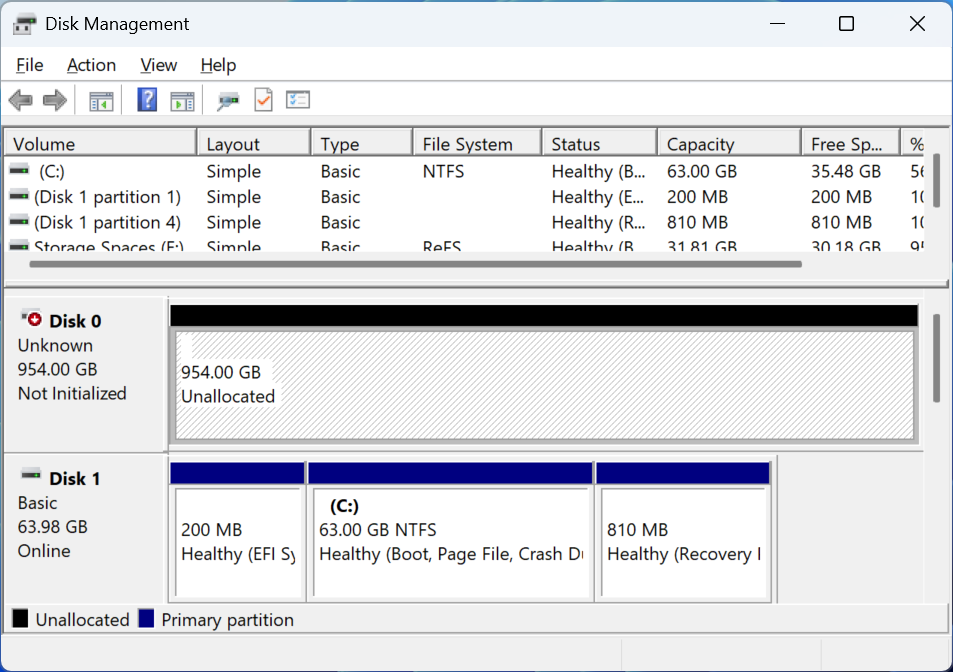
It shows up as Disk 0, 954 GB, Unknown, Not Initialized, and all the space is listed as Unallocated. I also tried plugging it into another Windows PC and got the exact same thing, so I’m guessing it’s the drive and not my computer.
Windows gives me the option to initialize it, but I haven’t clicked anything yet because I have no idea if that’ll make things worse. What exactly happens if I initialize it? Is there a way to get the files off first, or fix a disk not initialized without wiping whatever is still on it?

Does the drive sound normal when you plug it in? No clicking, beeping, spinning up and down?
Yeah, sounds normal as far as I can tell. It spins up and stays on. No clicking or anything weird.
From your screenshot the capacity looks right, so I’d probably try data recovery software before doing anything else (Disk Drill, PhotoRec, whatever fits your budget). I’d expect one of them to at least see what’s still on there if the drive itself is healthy. I found a pretty similar discussion on Quora when I was looking this up -might be something useful in the replies there too.
Never actually dealt with a not initialized disk myself though, so take this as more of a “this is what I’d try” than expert advice
Okay, thanks. I’ll do some reading and try one of those. What should I do with the drive for now though? Should I initialize it first or just leave it exactly as it is?
Idk tbh. I’d leave it alone until someone who knows more about this chimes in.


Had pretty much the same thing happen with an SSD a while back. I got the files off with Disk Drill first, then initialized the SSD following Microsoft’s instructions and it’s been working fine ever since. So apparently you can end up with a working drive again after initialization.

I’d seen a bunch of Reddit comments saying never to initialize a drive with data on it, so I got paranoid and took mine straight to a recovery lab. Ended up paying a little over $1k to get everything back. Reading some of the replies here now, I feel a little dumb lol. Mine wasn’t clicking or dying either. I probably should’ve at least tried recovery software first.

A Not Initialized disk doesn’t automatically mean the drive is dead or the data is gone. Windows may simply be unable to read the partition information. In OP’s case, the correct capacity, stable connection on two computers, and no clicking or other unusual sounds are all encouraging signs, so a DIY recovery attempt is reasonable.
What I wouldn’t do is initialize, format, create a new volume, or run CHKDSK yet. Initialization writes new disk metadata. It doesn’t overwrite the entire drive, but there’s no reason to change anything before you’ve recovered the files. This guide explains what disk initialization does and how to handle a Not Initialized drive without putting the existing data at unnecessary risk.
Disk Drill was already mentioned and it’s a good option for beginners since it can scan the physical disk without initialization and lets you preview what it finds. We did a Disk Drill review if you want more details. It’s not the only option, though other recovery tools can work here too. We have a best data recovery software list with a few different options.
Whatever you use, recover the files to another drive. Once you’ve confirmed the important stuff opens, you can initialize/repartition this one. If it starts clicking, disconnecting, showing the wrong capacity, or hanging the PC, stop there and consider a recovery lab.

What would cause an already used drive to become Not Initialized in the first place? I know you have to initialize a brand new drive before Windows can use it, but I’ve never seen it happen to one that already had data on it. Is it usually a corrupted partition table or can hardware issues cause it too? Been reading about how to fix disk not initialized and most of the answers seem to assume it’s a new drive.
Yep, both can cause it. On a drive that was working before, the usual suspects are a damaged MBR/GPT partition table, an unsafe disconnect or power loss, bad sectors around the disk metadata, or sometimes a bad USB cable/enclosure.
Hardware failure is also possible, which is why capacity and stability matter. If Windows still sees the correct size and the drive stays connected, that’s a much better situation than a drive showing 0 bytes, the wrong capacity, or constantly dropping out.
Quote from JohnMiller on October 30, 2026, 5:57 pmWhat would cause an already used drive to become Not Initialized in the first place? I know you have to initialize a brand new drive before Windows can use it, but I’ve never seen it happen to one that already had data on it. Is it usually a corrupted partition table or can hardware issues cause it too? Been reading about how to fix disk not initialized and most of the answers seem to assume it’s a new drive.

Try another cable/enclosure before you do anything else. Seriously. Cheap Chinese USB enclosures are flaky as hell and I’ve seen them make perfectly good drives look dead in Windows. Had basically the same thing happen to me. Swapped the enclosure and the drive popped right back up like nothing happened.

Correct size is a good sign, but don’t take it as proof the drive is healthy. Mine still showed the right capacity when it started developing bad sectors. I’d check the SMART data too. CrystalDiskInfo is an easy place to start and should give you a better idea of the drive’s condition. If it starts slowing down, freezing, or throwing read errors during recovery, I wouldn’t keep hammering it.

Would TestDisk make sense here after the files are recovered? If this is just a trashed partition table, seems like there’s a chance the old partition could be found again instead of wiping everything and starting over. I’ve used it once for a missing partition, but never on an unknown disk / Not Initialized one, so genuinely curious what someone with more experience thinks.

TestDisk can help if this is just a damaged partition table, yes. But recovering the important files first is still the safer approach. There’s not much reason to repair the old partition structure while the only copy of the data is still on the drive.
After recovery, you can initialize the disk in Disk Management and create a new volume (pick GPT for a modern Windows PC - MBR mainly makes sense if you need compatibility with older systems). Then test the drive and see whether this was just a partition issue or a sign that the drive itself is starting to fail.
Quote from JustMike on October 30, 2026, 6:58 pmWould TestDisk make sense here after the files are recovered? If this is just a trashed partition table, seems like there’s a chance the old partition could be found again instead of wiping everything and starting over. I’ve used it once for a missing partition, but never on an unknown disk / Not Initialized one, so genuinely curious what someone with more experience thinks.
Went through everything people linked here. Tried a different cable and USB port first, but got the same result. CrystalDiskInfo showed the drive as Good, so I went ahead with recovery and ended up using Disk Drill. The scan took around 6 hours and I had to pay to actually recover everything, but the files were there. Got the old college photos back along with a bunch of stuff I’d completely forgotten about.
After I copied everything to another drive, I initialized my old HDD and created a new volume. It’s showing up normally in Disk Management now and I can access it through File Explorer again.
Thanks everyone who helped. Very glad I asked before clicking Initialize lol.